Freeday widget in Salesforce
This document explains how to display the Freeday chat inside your Salesforce
environment. Replace YOUR_CHANNEL_ID with the value provided by your Freeday
representative.
Prerequisites
- Administrator rights in your Salesforce environment.
- At least one Lightning App in your environment.
Create the Visualforce page
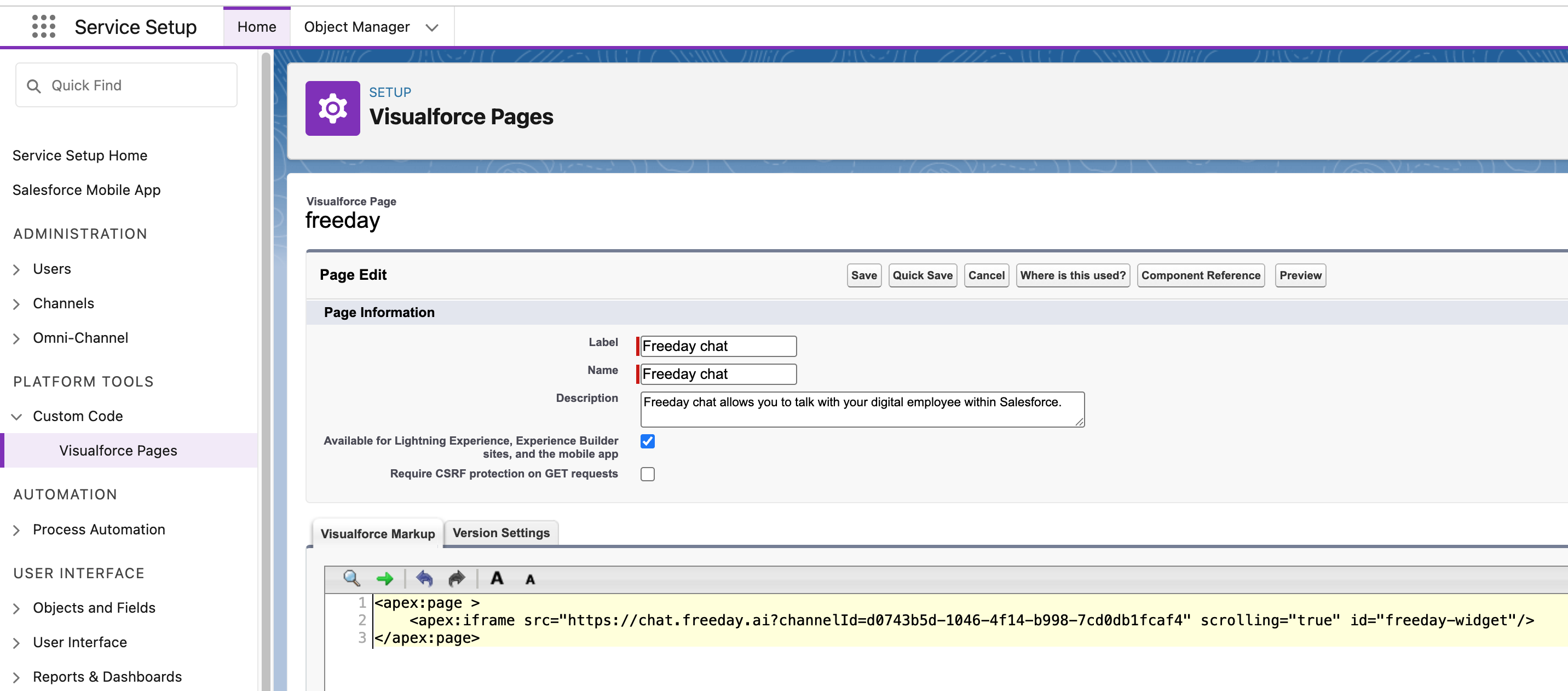
To display the Freeday chat, first create a Visualforce page with these settings:
- Label — the label of your Visualforce page.
- Name — the name of your Visualforce page.
- Description — optional.
- Enable Available for Lightning Experience, Experience Builder sites, and the mobile app.
- Replace the page markup with the template below, using your Channel ID.
<apex:page>
  <script type="module">
    const channelId = 'YOUR_CHANNEL_ID';
    const response = await fetch(`https://api.freeday.ai/webchat/v1/widget/${channelId}`);
    const freedayConfiguration = await response.json();
    const freedayWidget = await import(freedayConfiguration.cdnUrl);
    freedayWidget.bootstrap(freedayConfiguration);
  </script>
</apex:page>
Add the page to your app
Once the Visualforce page is created, add it to an existing app:
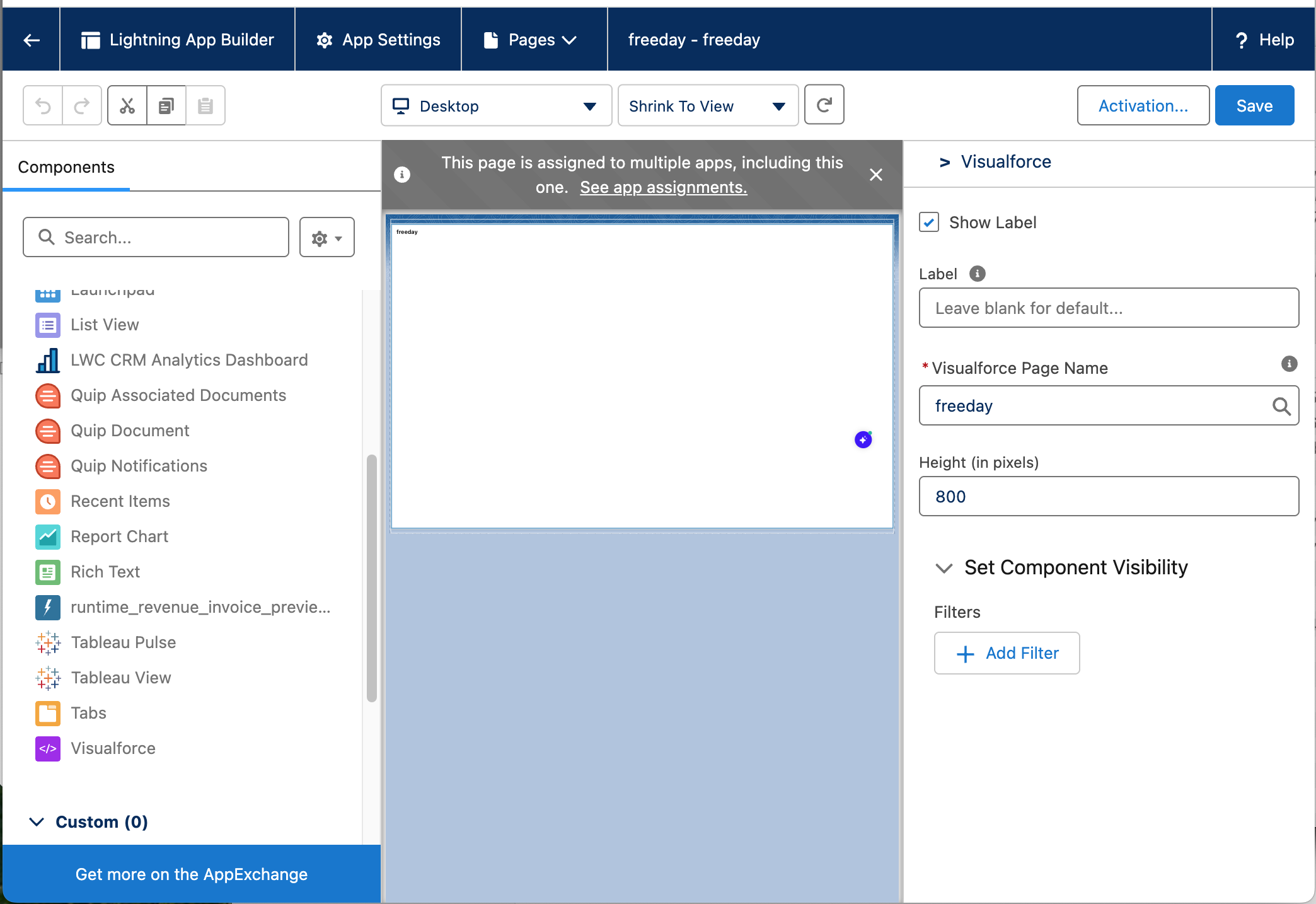
- Open the Lightning App Builder.
- Select the Visualforce component from the left-hand menu and place it in the layout.
- In Visualforce Page Name, enter the name you gave the page.
- Adjust the height to suit your page layout.